Step-by-step guide
How to pick colors from an image
This guide walks through the exact workflow behind the PickTint color picker: open a local image, sample a precise pixel, extract a main-color palette, edit it, and export a PNG card or CSS variables. Every step below matches what the tool on this site actually does.
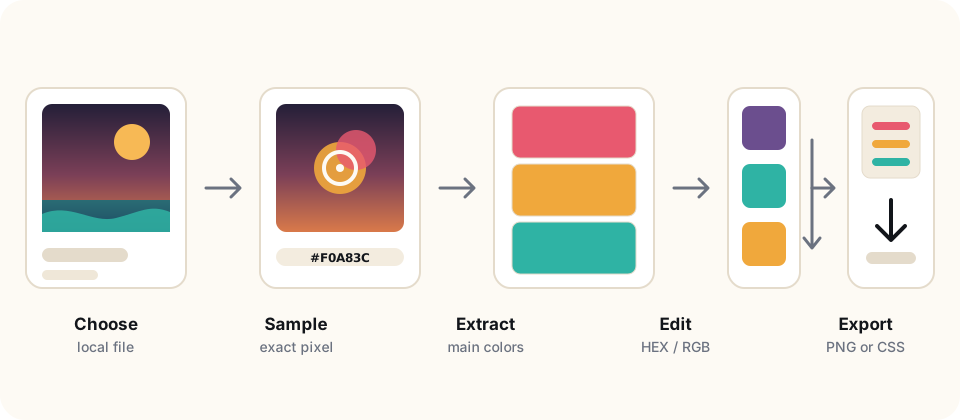
1. Open a local image
- Open the color picker and press Choose image, drop a file onto the image area, or paste one with Ctrl/Cmd + V.
- Pick a raster file your browser can decode: PNG, JPEG, WebP, GIF (first frame), BMP or AVIF, up to 25 MB and 40 megapixels.
- The file name and pixel size appear below the image once it loads. Larger files are refused with a message instead of being silently resized.
On a phone the same buttons work: the system file picker opens, and the image area fills the screen width. The image is decoded inside your browser; nothing is uploaded.
2. Sample an exact pixel
- Click or tap the point you care about. On a touch screen, press and drag to keep sampling while you move; on a keyboard, focus the image and use the arrow keys (hold Shift for ten-pixel steps).
- Read the HEX, RGB and HSL values in the panel above the image, together with the sample coordinates and the alpha value.
- Use the copy buttons to put a value on your clipboard, or select the fallback field if your browser blocks clipboard access.
Important detail: the sampled color comes from the original-resolution image, not from the smaller copy shown on screen. The on-screen preview may be scaled to fit, but the readout always reflects the real pixel at the shown coordinates. A fully transparent pixel reports alpha 0 and no color; a semi-transparent pixel shows its real RGB values plus the alpha percentage, and you can copy the RGBA value.
3. Extract a main-color palette
- Choose how many colors you want (3 to 8), then press Re-extract (changing the count re-extracts as well). The palette appears beside the image on desktop and below it on a phone.
- PickTint samples a downscaled copy for speed, groups similar pixels, merges near-duplicates and ignores transparent pixels.
- A single-color image returns one color — the tool does not pad the list with invented colors.
- To add a color you sampled by hand, press Add sampled color. Duplicates are rejected with a message.
Automatic extraction answers "what colors make up this image", while a manual sample answers "what is this exact point". They are complementary: extract first, then sample and add the specific pixel you need.
4. Edit, reorder and trim the palette
- Type a HEX value or use the color input next to a swatch to correct a color.
- Move a color up or down to change its position, or remove it entirely; the order you see is the order you export.
- Change the count and re-extract at any time. Switching to another image resets the palette so colors never leak between files.
Color values are shown as HEX, RGB and HSL. HEX is the common web notation; RGB describes the channels directly; HSL is easier when you want to lighten, darken or desaturate a color. The displayed HSL is rounded to whole degrees and percentages, so converting it back can differ from the original by a small amount.
5. Export the palette
- Download PNG card renders a shareable palette card with each HEX value (and HSL when the swatches are wide enough).
- Download CSS writes a file with stable variables named
--picktint-1upward, in the current palette order. - Copy CSS puts the same variables on your clipboard for pasting into a stylesheet.
The card and the CSS file are generated in your browser and saved by your browser's download feature. Editing a color, moving it or removing it changes what the next export contains, so export after you finish editing rather than before.
Working on desktop and mobile
Desktop layouts place the image and the palette side by side, with the sampled values pinned above the image so they stay visible while you point at pixels. Narrow screens stack the image first and the palette below it, keep the readout fixed above the image, and use touch-sized controls. Panels and buttons are keyboard reachable, with visible focus outlines.
What PickTint does not do
- It does not upload, store or share your image: decoding, sampling and exports all happen in the browser tab.
- It does not use accounts, cookies, local storage, or analytics and tracking scripts in your browser. The site counts page views on its own server without cookies; the privacy policy explains what is and is not recorded.
- It does not convert to CMYK, pick colors from the screen outside the browser, or accept remote image URLs.
- It does not guarantee that a sampled value looks identical on another display: color profiles and screen settings change the final appearance.
Ready to try it? Open the PickTint color picker and load an image. Questions are welcome at hello@picktint.com.